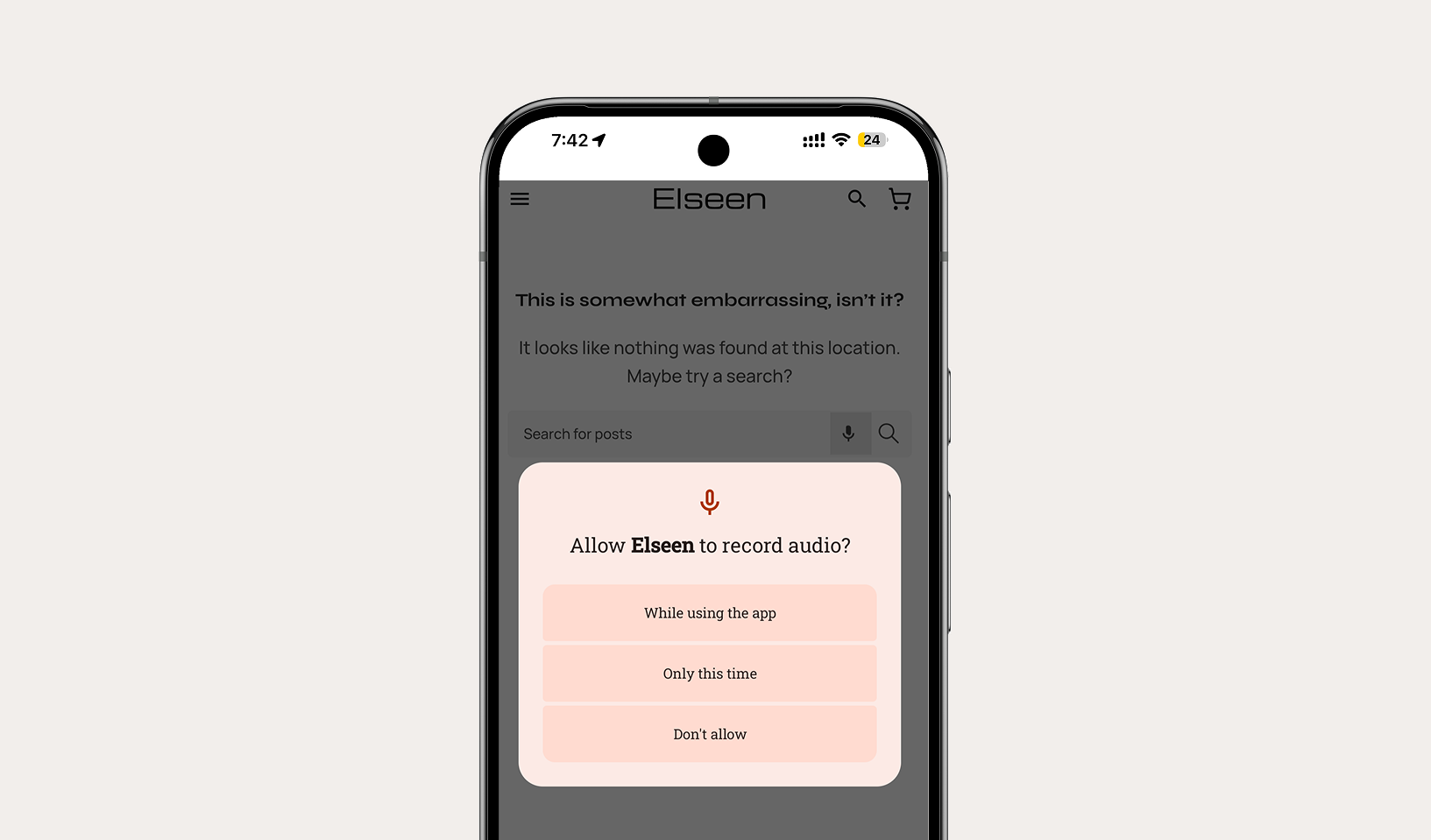
App permissions allow your mobile application to access native hardware capabilities such as the Camera, GPS Location, Microphone, Contacts, and Device Storage. In Nativine, permissions are configured visually in the App Builder without editing native manifest files.
1. Overview & Native Permission Handling
When converting your website to a native app, Nativine automatically handles permission requests at runtime:
- Android (AndroidManifest.xml): Permissions are declared dynamically in the compiled APK/AAB manifest based on your builder toggles.
- iOS (Info.plist): Apple strictly requires human-readable usage descriptions for every hardware feature. Nativine provides designated input fields for these strings.
2. No-Code App Builder Setup Guide
⚡ Nativine Builder Feature: App Permissions is integrated directly into the Nativine native app engine. Configure options natively in the App Builder under Add-ons & Plugins > Native UI.
Nativine App Builder Configuration
- Open the Nativine App Builder at /web-to-app-converter-pro.
- Click Add-ons & Plugins in the left builder menu and locate App Permissions.
- Toggle App Permissions to ON (or click Enable), then click Config.
- Configure your required settings, permissions descriptors, or target web parameters.
- Click Save Config and navigate to the Builds tab to compile your mobile application.
3. Frequently Asked Questions (Q&A)
Why did Apple reject my iOS build for missing Info.plist keys?
Apple automatically scans submitted iOS binaries. If a permission capability is included without a descriptive usage message, Apple will reject the submission. Ensure every enabled permission has a clear, user-facing explanation in the App Builder.
Are permissions requested immediately upon app install?
No. Modern Android (12+) and iOS require runtime permission prompts. The prompt will appear only when the user first triggers a feature requiring that permission (e.g. clicking a file upload button).