


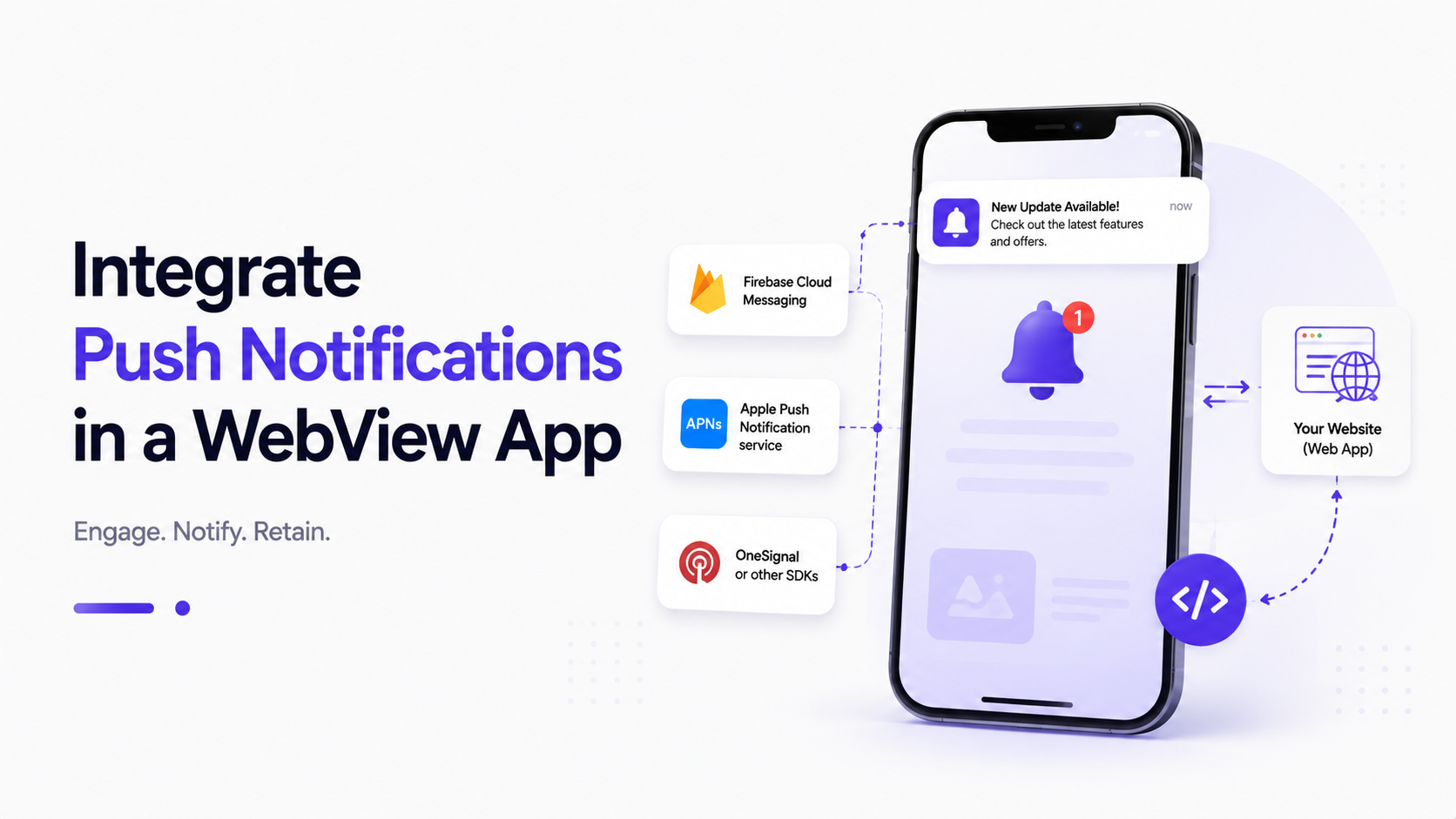
Why Push Notifications Are Essential
One of the primary reasons businesses choose to publish a website as a mobile app is to leverage Push Notifications. Unlike web push notifications, which are often blocked by browsers (especially on iOS), native mobile push notifications offer reliable, direct access to your user's home screen. Here is a guide on how to integrate push notifications inside your WebView app.
1. The Architecture of WebView Push Notifications
Since the web application runs inside a shell, the web app itself cannot directly register with notification servers (like Apple Push Notification service - APNs, or Firebase Cloud Messaging - FCM). The native app shell handles registration and passes the registration token to the web view. The workflow is as follows:
- Upon first launch, the native app shell requests notification permissions from the user.
- The shell registers the device with APNs/FCM or a third-party SDK (like OneSignal).
- The shell receives a unique Registration Token.
- The native shell passes this token to the WebView using a JavaScript injection:
webView.evaluateJavascript("window.setDeviceToken('" + token + "')", null) - Your web application receives the token and stores it in your database associated with the logged-in user.
2. Sending and Handling Notifications
When you want to send a notification (e.g. an order confirmation or marketing campaign), your web server sends a payload to the FCM/OneSignal API targeting the stored device token. When the device receives the notification, the operating system renders it. If the user taps the notification, you can send custom parameters (like a target URL path) inside the notification payload to direct the user to a specific page inside the app:
// Example push notification payload
{
  "title": "New Message!",
  "body": "Tap to read your new messages",
  "data": {
    "target_url": "https://myapp.com/messages/123"
  }
}
3. Handling Deep Links in WebView
In MainActivity.kt (Android) or AppDelegate.swift (iOS), intercept the notification click event. Read the target_url from the intent extras or launch options, and instruct the WebView to load that specific page:
val targetUrl = intent.getStringExtra("target_url")
if (!targetUrl.isNullOrEmpty()) {
    webView.loadUrl(targetUrl)
}
Integrating OneSignal for Easy Setup
Using raw FCM and APNs requires configuring complex certificates and handling direct payload routing. Third-party SDKs like OneSignal simplify this. OneSignal manages certificate routing, target tags, and deep-linking out of the box. Ensuring you are using compliant SDK version ranges (like [5.6.1, 5.9.99]) avoids runtime network blocks during peak server loads and keeps your push marketing fully operational.